Monitor your SolarEdge system locally. Skip the cloud.
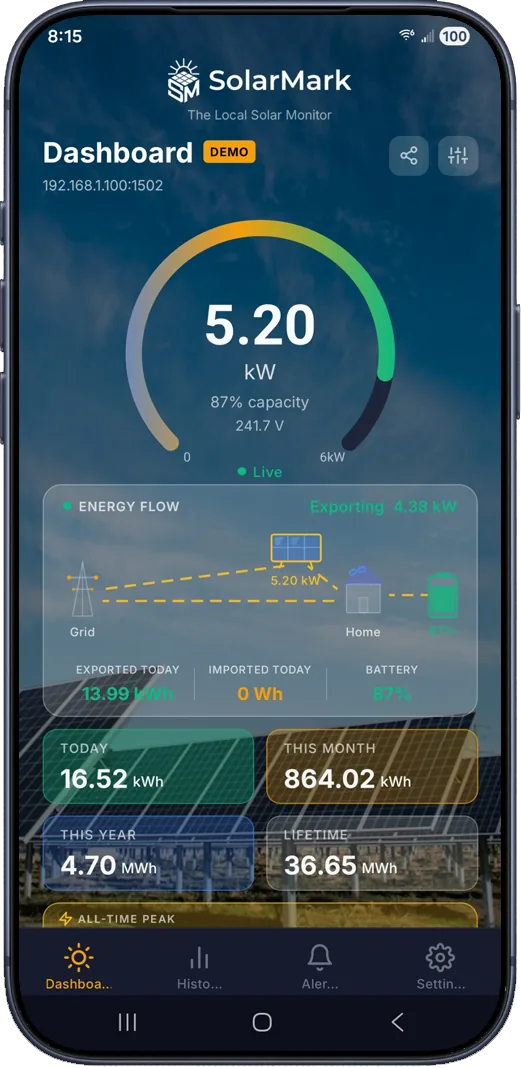
SolarEdge inverters speak SunSpec Modbus, an open, local protocol. SolarMark reads live power, grid import/export, and energy history straight from your inverter over your home network. No cloud account, no subscription, 5-second updates while the app is open.
One-time purchase. Free 14-day trial: confirm your inverter connects before you buy.
SolarEdge Setup
Three steps to local monitoring
SolarEdge inverters support SunSpec Modbus over TCP, but it ships switched off. A one-time setup turns it on for good.
Enable Modbus TCP on the inverter
On SetApp-era inverters (no display), Modbus TCP is enabled in the SetApp installer tool under Site Communication → Modbus TCP → Enable. The default port is 1502. SetApp access is installer-only, so if that's your inverter, call your installer and say: "Please enable Modbus over TCP on my inverter for local monitoring." A visit fee may apply. Older inverters with an LCD display can have it switched on from the inverter's own communication menu.
Give the inverter a fixed address
Your inverter needs to keep the same address on your home network. Open your internet provider's app (like Cox or Xfinity), find the inverter under "Connected Devices," and choose "Reserve IP" or "Fixed IP." Ethernet is the most reliable connection, but Wi-Fi works too.
Add it in SolarMark
Install SolarMark, add an inverter, and choose "SunSpec Standard" as the type. Enter the inverter's IP address and port 1502, or let the built-in network scan find it for you. Built-in diagnostics test reachability, the port, and the Modbus handshake so you can see exactly where a connection stands.
Setup steps reflect typical SolarEdge configurations. Menu names can vary by model and firmware; the in-app setup guide has detailed instructions.
What you get
Everything the cloud shows you. Faster. Yours.
Live data every 5 seconds while the app is open, straight from the inverter, plus history, alerts, and exports that never leave your devices.
Live Power Gauge
Real-time readings every 5 seconds, scaled to your system's rated capacity, with inverter voltage below the gauge.
Grid Import / Export
See power flowing to and from the grid in real time, with daily, monthly, and lifetime import/export totals.
Energy History & Charts
Daily records stored locally. View 30 days, 3 months, 12 months, or lifetime, with year-over-year comparisons.
Smart Alerts
Seven configurable alerts (no generation, inverter offline, low power, battery conditions), weather-gated to avoid false alarms.
Widgets & Notifications
Android home screen widgets and a persistent live notification with current power and today's energy.
CSV Export & Backup
Export energy history for your own spreadsheets, and back up your data so a lost phone never means lost history.
Multiple SolarEdge inverters? SolarMark polls each one in parallel and rolls them into combined totals. See the full feature list.
Why go local
Your inverter already has the data. Read it directly.
Compare local monitoring with SolarMark to the typical cloud portal experience.
| Feature | SolarMark | Typical Cloud Portal |
|---|---|---|
| 5-second live updates | ||
| Works when the internet is down | ||
| No account required | ||
| Data stays on your network | ||
| CSV history export | ||
| No monthly subscription |
Your existing SolarEdge cloud monitoring keeps working. SolarMark runs alongside it, not instead of it. "Typical Cloud Portal" describes common cloud monitoring experiences generally, not any specific product.
FAQ
SolarEdge questions, answered
Is SolarMark affiliated with SolarEdge?
No. SolarMark is an independent app built by an independent developer and is not affiliated with or endorsed by SolarEdge Technologies. It reads data using SunSpec Modbus, the open industry-standard protocol SolarEdge inverters support.
Which SolarEdge inverters are compatible?
Inverters that support SunSpec Modbus over TCP: in practice, models with a network connection (Ethernet or Wi-Fi) and reasonably recent firmware, which covers most residential SolarEdge installs from the past several years. Modbus TCP ships disabled and must be enabled once. Use the free 14-day trial to confirm your specific setup connects before purchasing.
My inverter has no display. Can I enable Modbus myself?
Displayless SolarEdge inverters are configured through SetApp, which requires an installer account. Ask your installer to enable Modbus over TCP for local monitoring. It's a quick settings change, though a visit fee may apply. Once enabled, the setting persists.
Will this interfere with mySolarEdge or my installer's monitoring?
No. Local Modbus polling runs alongside the inverter's normal reporting to the SolarEdge monitoring platform, so your cloud dashboard and installer's view keep working exactly as before. One note: SolarEdge inverters accept one Modbus TCP connection at a time. If another local tool (like a home automation system) is already connected, only one client can read at once.
Can I monitor my system when I'm away from home?
Yes. SolarMark includes a remote monitoring guide covering VPN and reverse proxy setups, so you can reach your home network securely from anywhere while keeping full ownership of your data.
What does SolarMark cost?
A one-time purchase with a free 14-day trial. No subscription, no cloud account, no recurring fees. The app talks directly to your inverter, so there's no server infrastructure for anyone to pay for.
Connection trouble? Work through the troubleshooting checklist, or email support@solarmark.us
Ready to see your SolarEdge data live?
Download SolarMark, try it free for 14 days, and take back control of your solar data.
Not a SolarEdge system? See the SMA, Fronius, and Sungrow guides, or the full compatibility list. Installer out of business? Start here.